.png)
Essential PC Maintenance Tips for Longevity
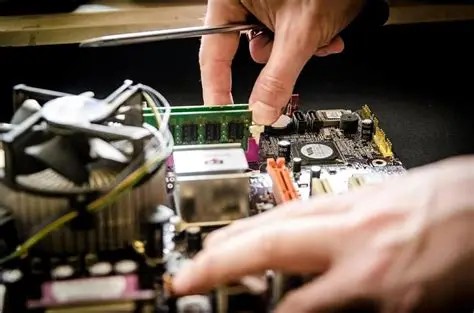
Your computer is a significant investment that deserves proper care. Just like a car needs regular servicing, your PC requires consistent maintenance to perform at its best and last for years. Whether you're using a laptop or desktop, following these essential maintenance tips will help you avoid costly repairs, improve performance, and extend your computer's lifespan.
In this comprehensive guide, we'll cover everything from physical cleaning to software optimization, with special focus on Nepal's dusty climate and power fluctuation challenges.
Quick Summary: Key Maintenance Areas
Regular PC maintenance involves four main areas. Here's what you need to focus on:
Physical Cleaning
Remove dust, dirt, and debris from components
Software Optimization
Keep systems updated and running efficiently
Storage Management
Organize files and maintain disk health
Hardware Care
Monitor temperatures and component health
1. Physical Cleaning & Dust Management
Nepal's dusty environment makes physical cleaning crucial. Dust accumulation is the leading cause of overheating and hardware failure in our climate.
External Cleaning
WeeklyWeekly Cleaning Checklist
- Wipe down monitor, keyboard, and mouse with microfiber cloth
- Clean keyboard between keys using compressed air or soft brush
- Remove dust from vents and ports using compressed air
- Clean desk area to prevent dust accumulation around PC
- Wipe case exterior with slightly damp cloth (avoid water inside)
Internal Cleaning (Desktop)
Every 3-6 Months- Preparation: Shut down completely and unplug all cables. Work in well-lit area.
- Open Case: Remove side panel (usually 2 screws at back). Ground yourself by touching metal.
- Dust Removal: Use compressed air in short bursts. Hold fans in place while cleaning. Keep can upright.
- Focus Areas: CPU cooler fins, GPU fans, case fans, power supply, RAM slots, motherboard.
- Reassembly: Ensure all connections are secure before closing case and powering on.
Important Safety Notes
Never use vacuum cleaners inside PC (static risk). Always hold fans when cleaning to prevent over-spinning. Keep compressed air can upright to avoid liquid spray. For laptops, seek professional cleaning service - opening requires expertise.
2. Software Optimization & Updates
Keeping your software updated and optimized ensures security, stability, and performance.
Operating System Maintenance
Monthly- Windows Updates: Check Settings → Windows Update. Install all important updates monthly.
- Driver Updates: Update graphics, chipset, and audio drivers from manufacturer websites.
- Disk Cleanup: Run built-in Disk Cleanup tool to remove temporary files and system junk.
- Defragmentation: For HDDs only (not SSDs), run monthly. SSDs use TRIM automatically.
- Startup Programs: Disable unnecessary startup apps via Task Manager → Startup tab.
Security & Protection
Weekly ScansSecurity Checklist
- Run Windows Defender or antivirus full scan weekly
- Keep antivirus definitions updated automatically
- Enable Windows Firewall (never disable)
- Use strong passwords and enable two-factor authentication
- Avoid suspicious downloads and unknown USB drives
- Keep browser and software updated for security patches
3. Storage Management & Data Organization
Proper storage management prevents performance degradation and protects your important data.
Disk Space Management
Monthly- Free Space Rule: Keep at least 15-20% of your drive free for optimal performance
- Uninstall Unused Programs: Remove software you no longer use via Settings → Apps
- Clear Downloads Folder: Delete or organize downloaded files monthly
- Move Large Files: Transfer videos, photos to external drive or cloud storage
- Empty Recycle Bin: Permanently delete files to free up space
- Browser Cache: Clear browser cache and cookies regularly
Storage Optimization Tip
Use Windows Storage Sense to automatically free up space. Go to Settings → System → Storage → Storage Sense. Enable it to automatically delete temporary files and empty recycle bin.
Backup Strategy
Weekly/MonthlyFollow the 3-2-1 Backup Rule:
- 3 Copies: Original + 2 backups of important data
- 2 Different Media: Internal drive + external hard drive or cloud
- 1 Off-site Copy: Cloud storage (Google Drive, OneDrive) for disaster recovery
What to Backup:
- Important documents, photos, and videos
- Work files and projects
- Browser bookmarks and passwords (use password manager)
- Email archives and contacts
- Software license keys and installation files
4. Hardware Monitoring & Temperature Control
Monitoring your hardware ensures components stay within safe operating temperatures and prevents premature failure.
Temperature Monitoring
ContinuousSafe Operating Temperatures:
- CPU Idle: 30-50°C | Under Load: 60-80°C (Max: 85°C)
- GPU Idle: 30-45°C | Under Load: 65-85°C (Max: 90°C)
- SSD: 30-50°C normal | Above 70°C requires attention
High Temperature Warning
In Nepal's summer (April-June), monitor temperatures closely. If CPU/GPU consistently exceeds 85°C, clean dust immediately, improve case airflow, or consider better cooling solutions. High temperatures reduce lifespan significantly.
Power & Electrical Safety
Essential in Nepal- Use UPS: Essential for Nepal's frequent power cuts. Protects from surges and data loss.
- Voltage Stabilizer: Recommended if voltage fluctuates significantly in your area
- Surge Protector: Use quality surge protector, not basic extension cord
- Proper Grounding: Ensure your electrical outlet is properly grounded
- UPS Battery: Replace UPS battery every 2-3 years for reliable backup
- During Load Shedding: Safely shut down or keep on UPS, never use directly from inverter
5. Complete Maintenance Schedule
Stay organized with this comprehensive maintenance schedule:
| Task | Frequency | Time Required |
|---|---|---|
| External cleaning (wipe down) | Weekly | 5 minutes |
| Antivirus full scan | Weekly | 30-60 minutes |
| File backup to external/cloud | Weekly | 15-30 minutes |
| Windows updates check | Monthly | 10-20 minutes |
| Disk cleanup & organization | Monthly | 20-30 minutes |
| Driver updates | Monthly | 15-25 minutes |
| Temperature monitoring check | Monthly | 5 minutes |
| Internal dust cleaning (Desktop) | 3-6 Months | 30-45 minutes |
| Thermal paste replacement | 2-3 Years | 45-60 minutes |
| UPS battery replacement | 2-3 Years | 15 minutes |
6. Essential Maintenance Tools
Having the right tools makes maintenance easier and safer:
Compressed Air
For safe dust removal from components. Available at computer shops in Nepal.
Microfiber Cloths
Soft, lint-free cloths for cleaning screens and surfaces without scratches.
Isopropyl Alcohol
70% or higher for cleaning thermal paste and stubborn stains. Let dry completely.
Monitoring Software
HWMonitor, MSI Afterburner, or Core Temp for temperature monitoring.
CCleaner
Reliable tool for cleaning temporary files and registry (use carefully).
Screwdriver Set
Phillips head screwdrivers for opening case and maintenance work.
7. Special Considerations for Nepal
Nepal Climate Challenges
ImportantDust & Air Quality:
- Kathmandu Valley's dust levels require more frequent cleaning (every 2-3 months vs 6 months elsewhere)
- Keep PC away from windows and doors where dust enters
- Use positive air pressure (more intake than exhaust fans) with dust filters
- Consider air purifier in room to reduce overall dust
Temperature Management:
- Summer months (April-June) require extra cooling attention
- Ensure good case airflow - don't place PC in closed cabinet
- Consider additional case fans for better cooling
- Use laptop cooling pads during hot weather
Power Issues:
- UPS is mandatory - never run PC without one in Nepal
- Check UPS battery health every 6 months
- Use voltage stabilizer if your area has frequent fluctuations
- Properly shut down during extended load shedding
8. Warning Signs That Need Immediate Attention
Don't ignore these symptoms - they indicate serious issues requiring immediate action:
Critical Warning Signs
- Unusual Noises: Grinding, clicking, or loud fan noise indicates failing components
- Overheating: System shutting down unexpectedly or extremely hot to touch
- Slow Performance: Sudden dramatic slowdown not resolved by restart
- Blue Screen (BSOD): Frequent crashes with blue screen errors
- Burning Smell: Any electrical burning smell - shut down immediately
- Display Issues: Artifacts, flickering, or no display indicates GPU/cable problems
- Won't Boot: Computer doesn't start or stuck on logo screen
- Data Corruption: Files becoming corrupt or disappearing (drive failure)
When to Seek Professional Help
For any critical warning signs above, laptop internal cleaning, thermal paste replacement (if inexperienced), or hardware upgrades, visit Itsuppliespasal or authorized service centers in Nepal. DIY repairs can void warranty and cause further damage.
Final Thoughts
Regular PC maintenance isn't just about keeping your computer clean - it's about protecting your investment, ensuring consistent performance, and avoiding expensive repairs. By following this comprehensive guide and adapting to Nepal's specific challenges, you can extend your PC's lifespan from 3-4 years to 7-10 years or more.
Key Takeaways:
- Physical cleaning is crucial in Nepal's dusty environment - do it regularly
- Keep software updated for security and performance
- Always use UPS - it's essential in Nepal, not optional
- Monitor temperatures, especially during summer months
- Backup your data regularly - hardware can fail anytime
- Don't ignore warning signs - early intervention prevents major issues
Remember: 15 minutes of maintenance per week is far better than hours of troubleshooting or thousands of rupees in repairs later!